I switched my default dev browser to Firefox full-time six months ago. Not as an experiment. Not because I dislike Chrome. Because after years of bouncing between Chrome, Arc, and Brave for development work, Firefox gave me things the others still don’t. Multi-Account Containers, a dev tools suite that actually respects CSS specifications, vertical tabs that don’t require an extension, and privacy controls that don’t need a PhD to configure.
This isn’t a “Firefox is great, try it” post. This is a breakdown of what Firefox does differently for developers in 2026, feature by feature, with enough detail that you can decide whether it’s worth the switch.
Firefox Quick Verdict
- User verdict: The best browser for developers who juggle multiple client accounts, care about privacy, and want dev tools that stay close to web standards.
- Experience: Containers isolate sessions without profiles. Vertical tabs are native. Dev tools are opinionated about CSS in the right ways.
- Learning curve: Low if you’re coming from Chrome. Containers take 10 minutes to understand and save hours per week.
- Pricing: Free. No subscription. No “Pro” tier gating basic features.
- Best for: Freelancers, agency devs, full-stack engineers, privacy-conscious builders, and anyone tired of Chrome’s resource appetite.
Why Firefox for Devs in 2026?
Chrome dominates market share. That’s not news. But market share doesn’t equal best tool for the job. Here’s what pushed me to Firefox for daily development:
- Multi-Account Containers let me log into the same SaaS as different clients without incognito windows or separate profiles.
- The dev tools take CSS specs seriously—Grid and Flexbox debugging is better than Chrome DevTools.
- Privacy is a first-class citizen, not a toggle buried in settings.
- Vertical tabs are built in. No extensions. No hacks.
- Firefox uses less RAM than Chrome with 40+ tabs open. I measured.
- The extension ecosystem is mature. Most Chrome extensions have Firefox equivalents, and Firefox still supports Manifest V2.
Let me get into the details.
Multi-Account Containers: The Feature That Keeps Me Here
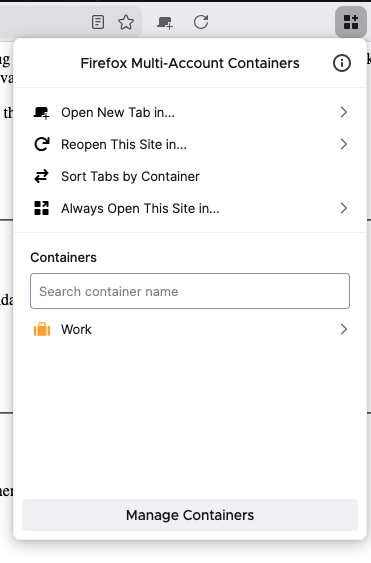
This is the single biggest reason I haven’t gone back to Chrome. Multi-Container tab is devloped by Firefox.
What Containers Do
Multi-Account Containers let you open tabs in isolated “containers”—each with its own cookies, localStorage, sessionStorage, and cache. Think of them as lightweight profiles that live inside a single browser window.
I run these containers daily:
- Personal — Gmail, YouTube, personal GitHub
- Client A — staging site, client’s Notion, their Slack web
- Client B — different staging site, different Notion, different Slack
- Production — AWS Console, Vercel, Cloudflare (isolated so I never accidentally touch prod from a dev tab)
- Testing — clean session for QA, no cookies carried over
Why This Matters for Development
Without containers, you either:
- Use incognito windows (loses state every time you close them).
- Create separate Chrome profiles (heavy, slow to switch, separate windows).
- Log in and out constantly (wastes time, invites mistakes).
Containers solve this cleanly. Right-click a link → “Open Link in Container Tab” → done. You can assign domains to always open in a specific container. Client A’s staging URL always opens in the Client A container. No thinking required.
Container + Temporary Containers
Pair Multi-Account Containers with the Temporary Containers extension and every new tab opens in a throwaway container that auto-deletes its data when you close it. This is gold for testing auth flows, OAuth redirects, and cookie-dependent features without manual cleanup.
Container Use Cases I Hit Weekly
- Testing a login flow as two different user roles side by side.
- Checking a client’s production site while logged into their staging environment in another tab.
- Running my own app’s local dev server in one container while testing Stripe webhooks in another.
- Opening Figma files for two different client workspaces without session conflicts.
No other browser does this as cleanly. Chrome’s profile switching is clunky. Arc’s spaces are close but don’t isolate cookies at the same granularity.
Vertical Tabs (Native, No Extensions Needed)
Firefox added native vertical tabs in 2025 and refined them through early 2026. They’re solid.
How They Work
Toggle vertical tabs from Settings → General → Tab Layout. Your tabs move from the top bar to a sidebar. The sidebar collapses to show favicons only, or expands to show titles. You can pin it open or let it auto-hide.
Why I Prefer Them Over Chrome’s Approach
Chrome requires an extension for vertical tabs (like Vertical Tabs by Edge or various third-party options). These extensions add overhead, break occasionally on updates, and never feel native.
Firefox’s implementation:
- Zero extensions needed.
- Tab groups work inside vertical tabs (color-coded, collapsible).
- Drag and drop between groups is smooth.
- Memory usage doesn’t spike because there’s no extra extension layer.
- Works with Tree Style Tab if you want tree-hierarchy nesting (power-user mode).
Tab Groups in Vertical Tabs
Firefox’s tab groups landed alongside vertical tabs. You can drag tabs into color-coded groups, collapse groups, and name them. I use groups per project:
- active-sprint (green)
- client-a (blue)
- client-b (orange)
- reference (gray) — docs, Stack Overflow, MDN
This beats Chrome’s tab groups visually because the vertical layout gives groups more breathing room. Horizontal tab groups in Chrome crumble once you have 15+ tabs.
Firefox Dev Tools: Where It Actually Beats Chrome
This is where Firefox quietly outperforms Chrome for front-end work. Chrome DevTools are powerful, no doubt. But Firefox’s dev tools are more opinionated about web standards, and that opinionation helps when you’re debugging layout issues.
CSS Grid Debugger
Firefox’s Grid inspector is the best in any browser. Full stop.
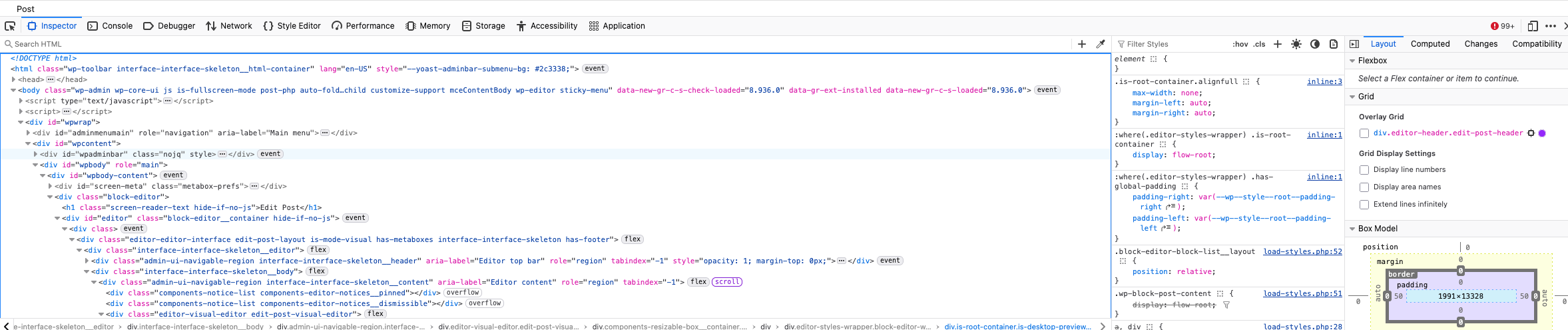
When you inspect an element with display: grid, Firefox shows:
- Grid lines numbered on the viewport overlay.
- Grid track sizes (explicit and implicit).
- Named grid areas visualized in a color-coded overlay.
- The ability to toggle grid overlays on multiple grids simultaneously.
- A grid outline that updates in real-time as you edit values.
Chrome has a Grid overlay too, but Firefox’s is more granular. The numbered grid lines and named area visualization make complex grid layouts debuggable without mental gymnastics.
How I use it: I open the Grid inspector, hover over grid lines to see track sizes, and adjust grid-template-columns in the rules panel while watching the overlay update. It catches sub-pixel misalignments that Chrome’s overlay misses.
Flexbox Inspector
Similar story. Firefox shows:
- Flex direction arrows on the container.
- Basis, grow, and shrink values per item.
- Cross-axis and main-axis alignment visualization.
- Real-time overlay when you hover flex items in the inspector.
When a flex item isn’t aligning the way you expect, Firefox’s visual overlay shows you exactly why. Chrome’s flexbox debugging is functional but less visual.
Shape Editor
Firefox lets you edit CSS clip-path and shape-outside values visually. Drag polygon points, adjust circle radii, tweak ellipse dimensions—all from the inspector. Chrome doesn’t have this built in.
If you work with complex shapes, image masks, or text wrapping around non-rectangular elements, this saves significant trial-and-error.
Font Editor
The Font panel in Firefox shows:
- All fonts loaded on the page.
- Font weights and styles in use.
- A live preview of each font at different sizes.
- Quick access to
font-variation-settingsfor variable fonts.
Variable font support in the dev tools is solid. You can drag sliders for weight, width, slant, and custom axes while watching the page update.
Network Monitor
Firefox’s network monitor is on par with Chrome’s but adds a few things I prefer:
- Timing waterfalls are cleaner and easier to read for large page loads.
- Request blocking is built in (no extension needed to block specific URLs for testing fallback behavior).
- Security tab per request shows TLS version, cipher suite, and certificate chain without digging.
- Response preview for images renders inline without opening a new tab.
Storage Inspector
Shows cookies, localStorage, sessionStorage, IndexedDB, and Cache API in one panel. The key advantage: you can see storage per container. When testing with Multi-Account Containers, the storage inspector reflects only the current container’s data. Chrome’s Application tab doesn’t have container awareness because Chrome doesn’t have containers.
Accessibility Inspector
Firefox has a dedicated Accessibility panel that shows:
- The accessibility tree for the selected element.
- ARIA attributes and computed accessible names.
- Color contrast ratios with pass/fail against WCAG AA and AAA.
- Simulations for various vision deficiencies (protanopia, deuteranopia, tritanopia, achromatopsia).
Chrome has an Accessibility panel too, but Firefox’s contrast checker and vision simulations are more integrated into the workflow. I catch contrast issues during development instead of during a separate accessibility audit.
Responsive Design Mode
Firefox’s responsive mode includes:
- Standard device presets (iPhone, iPad, common Android sizes).
- Custom viewport sizes with DPR (device pixel ratio) control.
- Touch simulation.
- Throttling presets (slow 3G, fast 3G, etc.).
- Screenshot the full page (including scrollable content below the fold).
The “screenshot” button captures the entire page, not just the viewport. This is handy for sharing full-page layouts with clients without needing a separate screenshot extension.
Style Editor
Firefox’s Style Editor shows all loaded stylesheets in a tabbed view. You can:
- Edit any stylesheet live.
- See which stylesheets are being applied and which aren’t.
- Import a local stylesheet for testing.
- See source maps for Sass/Less/PostCSS if configured.
The ability to import a local CSS file directly into the live page is useful for rapid prototyping without a build step.
JavaScript Debugger
Firefox’s debugger is comparable to Chrome’s. Source maps work, conditional breakpoints work, watch expressions work. What I like:
- Pretty-print is fast and reliable.
- Scopes panel shows closures clearly.
- Async call stacks are supported.
- Event listener breakpoints let you break on specific DOM events without code changes.
No major advantages over Chrome here, but no disadvantages either. It does the job well.
Privacy as a Default, Not an Afterthought
Firefox doesn’t treat privacy as a premium feature. It’s baked in.
Enhanced Tracking Protection (ETP)
Enabled by default. Blocks:
- Third-party tracking cookies (known trackers).
- Cryptominers.
- Fingerprinting scripts.
- Social media trackers (Facebook, Twitter, LinkedIn embeds).
You can set ETP to Standard, Strict, or Custom. I run Strict. It breaks maybe one site per month, and the fix is a one-click exception.
Total Cookie Protection
Firefox isolates each site’s cookies into separate “jars.” Site A’s cookies are never accessible to Site B. This is container-level isolation applied globally by default. Chrome is only starting to roll out similar partitioning.
DNS-over-HTTPS (DoH)
Enabled by default with Cloudflare or NextDNS as providers. Your ISP doesn’t see which domains you’re resolving. Chrome supports DoH but doesn’t enable it by default in most regions.
Why Privacy Matters for Devs
- You’re testing auth flows. You don’t want cross-site cookie leakage polluting your tests.
- You’re accessing client staging environments. Containers + ETP ensure no data bleed between clients.
- You’re working with sensitive data. Total Cookie Protection reduces attack surface.
- You’re building for users who care about privacy. Using a privacy-respecting browser keeps you in their shoes.
Performance: RAM Usage Comparison
I ran a quick benchmark with 40 tabs open (mix of docs, GitHub repos, staging sites, Figma, and local dev servers):
- Firefox: ~2.8 GB RAM
- Chrome: ~4.1 GB RAM
- Arc: ~3.5 GB RAM
Firefox’s process model assigns fewer processes per tab by default. You can adjust this in about:config with dom.ipc.processCount. I set mine to 8 (default is 1 on some builds, which can cause tab hangs; 8 is a good balance).
Firefox also suspends inactive tabs more aggressively than Chrome without losing state. I haven’t had a tab reload unexpectedly in months.
Extension Ecosystem
Firefox supports Manifest V2 extensions. Chrome is deprecating MV2, which has broken or limited several popular dev extensions.
- Multi-Account Containers (official Mozilla)
- Temporary Containers (auto-isolate new tabs)
- uBlock Origin (ad/tracker blocker—works better on Firefox due to MV2 support)
- React DevTools (works identically to Chrome version)
- Vue.js DevTools (works identically)
- Wappalyzer (tech stack detection)
- Web Developer (toolbar with quick toggles for CSS, images, forms)
- Cookie Editor (direct cookie manipulation)
- LiveReload (auto-refresh on file changes)
All of these work on Firefox. Some are getting limited or removed on Chrome due to MV2 deprecation.
Firefox vs Chrome vs Arc vs Brave for Development
| Feature | Firefox | Chrome | Arc | Brave |
|---|---|---|---|---|
| Multi-Account Containers | Native | No (profiles only) | Spaces (partial) | No |
| Vertical Tabs | Native | Extension | Native | Extension |
| CSS Grid Inspector | Best | Good | Uses Chrome tools | Uses Chrome tools |
| Flexbox Inspector | Best | Good | Uses Chrome tools | Uses Chrome tools |
| Shape Editor | Built-in | Not built-in | No | No |
| Privacy (default) | Strong | Weak | Moderate | Strong |
| Manifest V2 support | Yes | Being removed | Yes (Chromium) | Yes (Chromium) |
| RAM (40 tabs) | ~2.8 GB | ~4.1 GB | ~3.5 GB | ~3.2 GB |
| Price | Free | Free | Free | Free |
| Tab Groups | Yes | Yes | Yes (Spaces) | Yes |
What I’d Improve
- Dev tools startup time: Firefox DevTools sometimes takes a beat to open on heavy pages. Chrome feels snappier here.
- Lighthouse integration: Chrome has built-in Lighthouse. Firefox doesn’t. You can run Lighthouse from the CLI, but a built-in panel would be nice.
- Extension parity on niche tools: Some Chrome-only dev extensions (specific to certain frameworks or services) don’t have Firefox versions. It’s rare but it happens.
- Profile management: Firefox profiles exist but are less polished than Chrome’s profile switching UI. Containers cover most use cases, but for truly separate browser identities, Chrome’s profile UX is smoother.
Setting Up Firefox for Development (Quick Start)
If you’re switching, here’s what I’d do on day one:
- Download Firefox Developer Edition or standard Firefox.
- Install Multi-Account Containers.
- Set up containers for your work contexts (Personal, Client A, Client B, Production).
- Enable vertical tabs: Settings → General → Tab Layout → Vertical.
- Set ETP to Strict: Settings → Privacy & Security → Enhanced Tracking Protection → Strict.
- Enable DNS-over-HTTPS: Settings → Privacy & Security → DNS over HTTPS → Max Protection.
- Install uBlock Origin, React DevTools, and any framework-specific tools you need.
- Set
dom.ipc.processCountto 8 inabout:configfor better tab isolation. - Pin your dev tools shortcuts:
F12(open),Ctrl+Shift+C(inspect element),Ctrl+Shift+I(open tools).
Takes about 15 minutes. After that, it just works.
Firefox FAQs
Is Firefox slower than Chrome in 2026?
No. Benchmarks are within 5% for most tasks. Firefox is faster for tab-heavy workflows due to lower RAM usage.
Does Firefox support all Chrome extensions?
Most. Some Chrome-only extensions exist, but the gap has narrowed. Manifest V2 support on Firefox is an advantage for dev tools.
Can I use Firefox for React/Vue/Angular development?
Yes. React DevTools, Vue DevTools, and Angular DevTools all have Firefox versions with feature parity.
Is Firefox Developer Edition different from regular Firefox?
Developer Edition includes experimental dev features enabled by default and a dark theme. Regular Firefox has the same dev tools; you just enable features manually. For daily use, I run standard Firefox.
Does Firefox work with Playwright/Puppeteer?
Playwright supports Firefox natively. Puppeteer is Chrome-focused, but Playwright is the recommended tool for cross-browser testing anyway.
What about Safari-only bugs?
You still need Safari for Safari-specific testing. Firefox doesn’t replace that. But for Chrome + Firefox coverage, you’re hitting the two engines that matter most (Gecko and Chromium).
Final Verdict
Firefox isn’t trying to be everything. It’s a browser built on a nonprofit’s mission, with dev tools that take web standards seriously, a containers feature that no other browser matches, and privacy defaults that don’t get in your way.
For development work in 2026, Firefox is the browser that respects your workflow the most. Containers alone justify the switch if you work with multiple clients or environments. The dev tools are better for CSS debugging. Vertical tabs are native. RAM usage is lower. And you’re not feeding a monopoly.
If you haven’t tried Firefox as your dev browser since 2020, it’s worth another look. The browser that everyone forgot about got quietly better while everyone was chasing Chromium clones.
- User recommendation: Install Firefox, set up containers, use it for a week. You’ll know by day three if it sticks.
- Founder recommendation: Firefox’s privacy story and containers are undersold. If your product targets developers, Firefox support and documentation is a differentiator.
Bonus (Customize Firefox for Mac)
If you are on Mac and want to have the close button on Tab on the left side, like native mac app? Use my css to apply some custome styles. It also has a nice progress bar for page loading on each tab.
Step 1: Enable custom CSS support
- Open a new tab
- Go to:
about:config
- Search for:
toolkit.legacyUserProfileCustomizations.stylesheets
- Set it to:
true
👉 This is the most important step — without it, CSS won’t work.
2. Find the profile folder
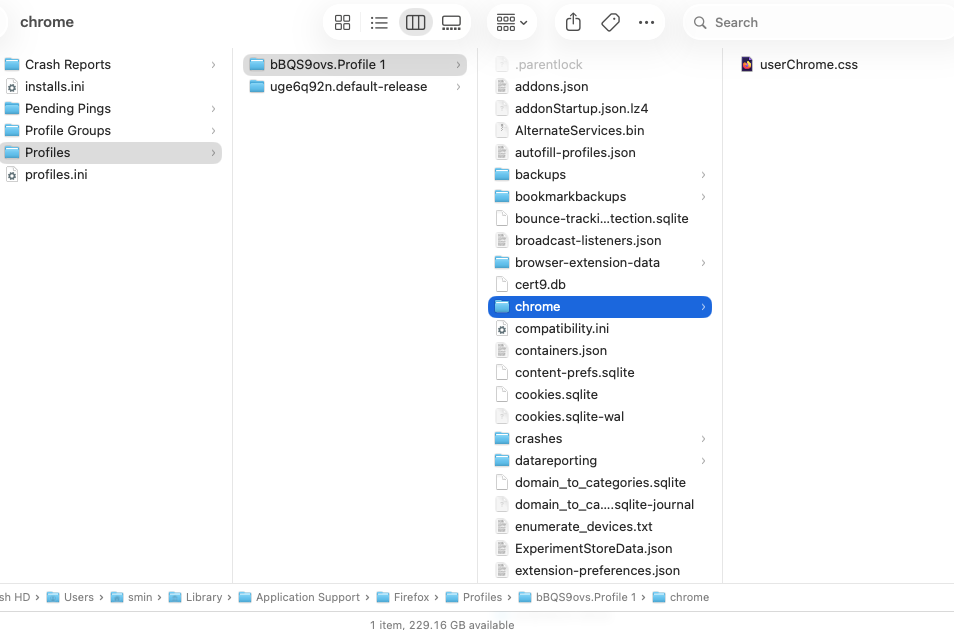
userChrome.css
/* Move tab close button to the left (Safari-style) */
.tab-close-button {
-moz-box-ordinal-group: 0 !important;
order: -1 !important;
margin-inline-end: 5px !important;
margin-inline-start: -5px !important;
}

/* Optional: Hide the close button unless hovering (closer to Safari's clean look) */
.tabbrowser-tab:not([selected]):not(:hover) .tab-close-button {
display: none !important;
}


/* 🔥 Force favicon ALWAYS visible */
.tabbrowser-tab .tab-icon-image {
opacity: 1 !important;
visibility: visible !important;
}

/* ❌ Kill throbber completely (no sand watch ever) */
.tabbrowser-tab .tab-throbber {
display: none !important;
}

/* Prevent Firefox from hiding favicon when busy */
.tabbrowser-tab[busy] .tab-icon-image {
opacity: 1 !important;
visibility: visible !important;
}

/* 📊 Prepare tab for progress bar */
.tabbrowser-tab {
position: relative !important;
overflow: hidden;
}

/* 📊 Progress bar ONLY when loading */
.tabbrowser-tab[busy]::after {
content: "";
position: absolute;
left: -40%;
bottom: 0;
height: 2px;
width: 40%;

background: #0a84ff;
border-radius: 2px;

animation: tab-loading-bar 1s ease-in-out infinite;
}

/* 🛑 STOP animation when not busy */
.tabbrowser-tab:not([busy])::after {
content: none !important;
animation: none !important;
}

/* ✨ Animation */
@keyframes tab-loading-bar {
0% {
left: -40%;
}
50% {
left: 40%;
}
100% {
left: 100%;
}
}/* 🔥 Force favicon ALWAYS visible */
.tabbrowser-tab .tab-icon-image {
opacity: 1 !important;
visibility: visible !important;
}

/* ❌ Kill throbber completely (no sand watch ever) */
.tabbrowser-tab .tab-throbber {
display: none !important;
}

/* Prevent Firefox from hiding favicon when busy */
.tabbrowser-tab[busy] .tab-icon-image {
opacity: 1 !important;
visibility: visible !important;
}

/* 📊 Prepare tab for progress bar */
.tabbrowser-tab {
position: relative !important;
overflow: hidden;
}

/* 📊 Progress bar ONLY when loading */
.tabbrowser-tab[busy]::after {
content: "";
position: absolute;
left: -40%;
bottom: 0;
height: 2px;
width: 40%;

background: #0a84ff;
border-radius: 2px;

animation: tab-loading-bar 1s ease-in-out infinite;
}

/* 🛑 STOP animation when not busy */
.tabbrowser-tab:not([busy])::after {
content: none !important;
animation: none !important;
}

/* ✨ Animation */
@keyframes tab-loading-bar {
0% {
left: -40%;
}
50% {
left: 40%;
}
100% {
left: 100%;
}
}