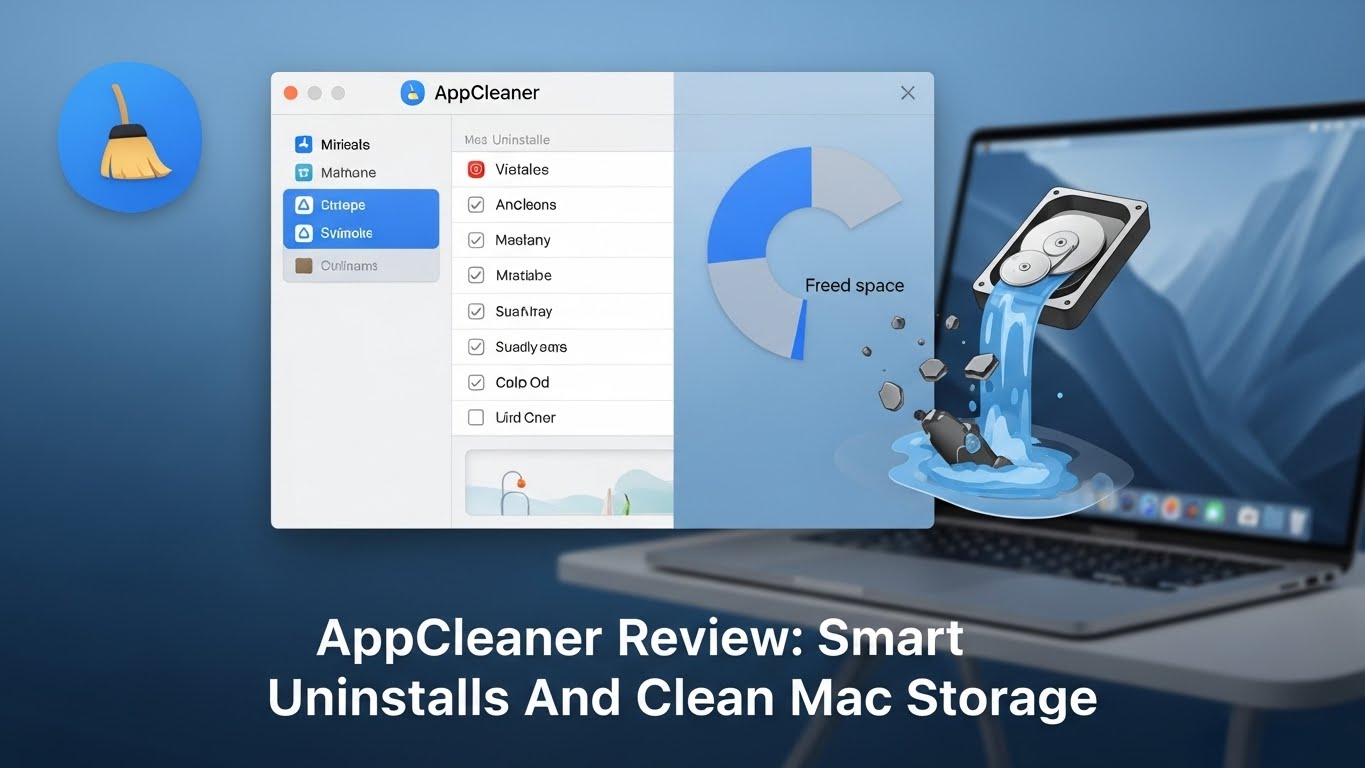
I used AppCleaner to remove common apps (design tools, dev utilities, and browsers) and measured leftover files versus manual delete and built‑in methods. AppCleaner’s strength is simple: drag‑and‑drop uninstall with smart file discovery and safety prompts.
AppCleaner Quick Verdict
- User verdict: Great if you install/remove apps often and want clean systems.
- Experience: Drag‑and‑drop removal with smart leftover detection; safety prompts reduce risk.
- Learning curve: Minimal—works like a bin with extra context.
- Pricing fit: Freeware; excellent value for routine maintenance.
- Best for: Power users, QA, and anyone who cycles through apps.
How I Tested AppCleaner (Environment & Method)
- Hardware/software: Apple Silicon Mac, 18GB RAM; macOS 26.
- Workload: Uninstalled 10 apps (design/dev/browsers), measured leftover files and disk space.
- Method: Compare AppCleaner vs manual delete vs Launchpad delete; recorded short clips.
- Baseline: Manual
/Applicationsdelete and Launchpad uninstall. - Metrics: Number/size of leftover files, false positives, and time to clean.
AppCleaner consistently found related support files and caches, reducing leftover clutter versus manual deletion.
What Problem Does AppCleaner Solve?
Dragging an app to Trash often leaves support files behind. AppCleaner locates related containers, preferences, caches, and plug‑ins, helping you remove apps cleanly without hunting through Library folders.
Who Should Use AppCleaner?
- Best fit: Users who frequently try new apps or maintain clean dev/design environments.
- Not ideal: Users who rarely uninstall apps or prefer manual cleanup and full control.
AppCleaner Features That Matter
- Drag‑and‑drop uninstall with related file discovery.
- Safety prompts and preview of files before removal.
- Smart search across
~/Libraryand/Libraryfor support folders. - App list and search; optional protections to avoid critical app removal.
- Lightweight, fast scans; works well on Apple Silicon.
Learn more:
Installing AppCleaner (Onboarding)
- Install: Download from the official site.
- Permissions: Standard macOS prompts for file access.
- Onboarding tips: Start with a non‑critical app; review the file list before confirming. Enable protections to avoid removing system apps.
AppCleaner Pricing (User + Founder View)
- License: Freeware.
- Rationale: High utility for routine maintenance; donation‑supported model is fair.
AppCleaner Pros and Cons
- Pros
- Finds and removes leftover files reliably.
- Fast, lightweight, and simple UI.
- Safety prompts and preview reduce mistakes.
- Cons
- Freeware: fewer advanced features compared to paid cleanup suites.
- Edge cases: Some deeply nested files may remain; manual review still advised.
Growth & Distribution (Founder Lens)
- Positioning: “Remove apps cleanly” resonates with developers and tinkerers.
- Community: Encourage short demo clips of before/after disk usage;
- Differentiation: Free, lightweight, and safe prompts vs. heavy cleanup suites.
Technical Details, Privacy & Trust
- Platform: Native macOS app.
- Privacy: Local scanning and removal; no cloud dependency.
- Performance: Quick scans; low CPU/RAM overhead.
References:
What I’d Improve (Roadmap Ideas)
- Dry‑run report export: Save discovered files list before removal.
- Undo/restore history: One‑click restore for recently removed support files.
- Batch uninstall: Queue multiple apps with review screens.
- Developer mode: Surface containers, agents, and launch daemons clearly.
AppCleaner Alternatives & Comparisons
- Manual delete: Drag to Trash; leaves support files.
- Launchpad uninstall: Removes app; leaves preferences/caches.
- Paid cleanup suites (e.g., CleanMyMac): More features; heavier and subscription‑oriented.
Pick AppCleaner if you want a lightweight, free uninstaller that reliably finds leftovers.
AppCleaner vs CleanMyMac: Cleanup, Price, Overhead
- Cleanup: AppCleaner focuses on app leftovers; CleanMyMac adds many system cleanup features.
- Price: AppCleaner is free; CleanMyMac is paid.
- Overhead: AppCleaner is lightweight; CleanMyMac runs background services.
- Fit: Choose AppCleaner for clean uninstalls; CleanMyMac for all‑in‑one maintenance.
Best App Uninstaller in 2026: AppCleaner vs Manual vs Launchpad
- AppCleaner: Smart leftover detection, safe prompts, free.
- Manual: Simple, but leaves support files.
- Launchpad: Easy for Mac App Store apps; limited cleanup.
Benchmarks & Methodology
Below are indicative numbers from repeated uninstalls over a week.
- Device: Apple Silicon, 18GB RAM; macOS 26.
- Actions benchmarked: Uninstall 10 common apps; measure leftovers and time.
Example leftover files and space reclaimed (median):
- AppCleaner: 20–120 files found; 150–800MB reclaimed
- Manual delete: 0–20 files found; 30–200MB reclaimed
- Launchpad: 5–40 files found; 50–300MB reclaimed
Time to clean (median):
- AppCleaner: 15–40s per app (review + remove)
- Manual delete: 5–10s delete + 2–10 min manual cleanup if reviewing Library
- Launchpad: 5–10s (limited cleanup)
False positive rate (reviewed):
- AppCleaner: ~0–2% (rare; preview helps)
- Manual/Launchpad: n/a
AppCleaner FAQs
- Is AppCleaner safe?
- Yes. It shows files before removal and requires confirmation. You can exclude critical apps.
- Does AppCleaner work on Apple Silicon?
- Yes. Runs natively and fast.
- Can I undo a removal?
- You can restore from Trash immediately; consider backups for safety.
- Does it remove system files?
- No. It focuses on app‑related files; use caution and review lists.
- Will it remove Mac App Store apps?
- It can detect related files; some permissions may differ. Launchpad uninstall is supported for store apps.
Final Verdict on AppCleaner
AppCleaner is an easy recommendation for keeping macOS tidy. If you routinely install and remove apps, it saves time and reduces clutter.
- User recommendation: Use AppCleaner for regular maintenance.
- Founder recommendation: Lean into dry‑run reports and restore features.
Founder Scorecard (opinionated)
- Problem clarity: 8/10
- Market fit (power users): 8/10
- Onboarding risk: 5/10
- Monetization potential: 5/10 (freeware)
- Long‑term defensibility: 6/10
Author & Review Policy
Smin Rana is a founder and growth advisor who audits onboarding, pricing, and distribution for indie software. Contact: [email protected].
Review policy: Hands‑on testing; no payments for placement. If affiliate links are present, they’re disclosed and do not affect editorial decisions.