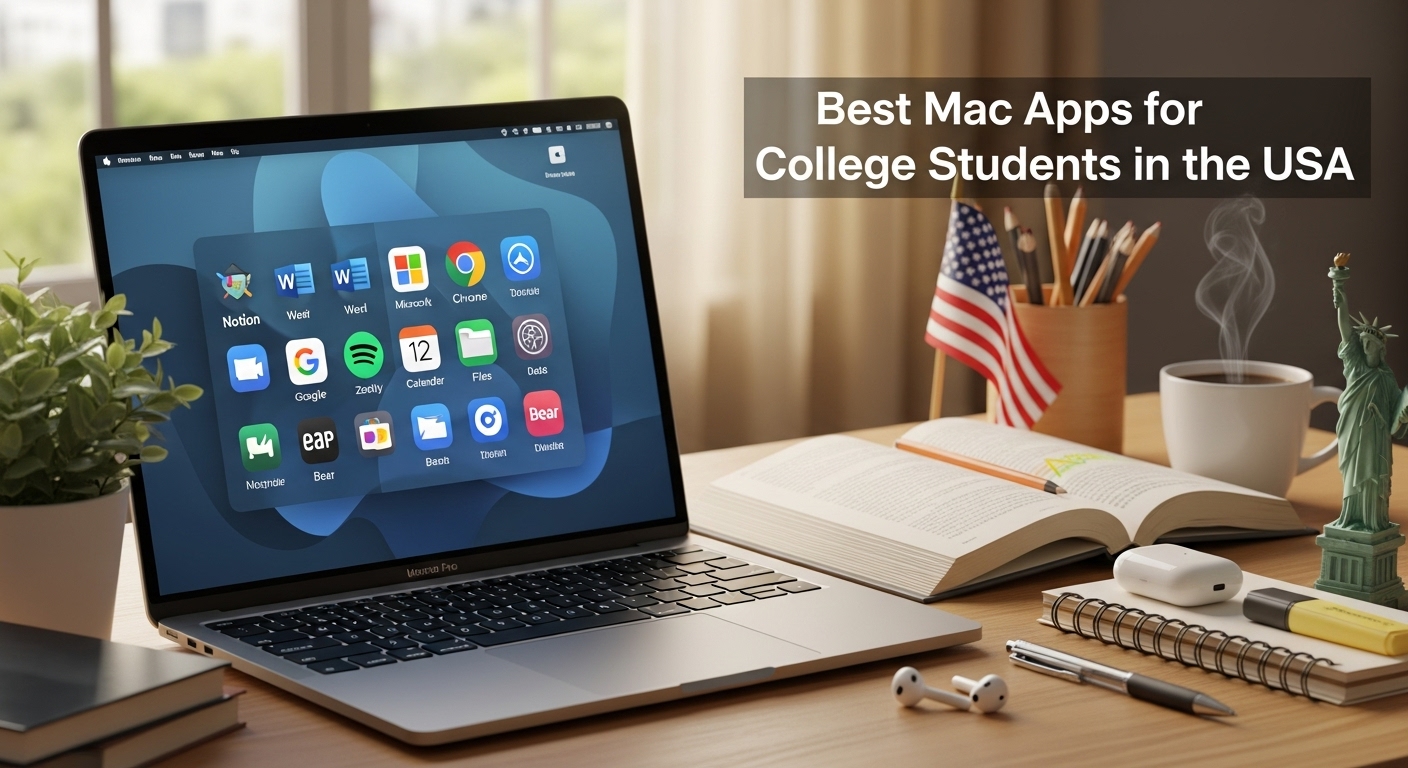
College life is a whirlwind of lectures, assignments, exams, and trying to remember if you actually ate lunch today. If you’re a college student with a Mac, you’re already ahead of the game with a powerful machine in your hands. But here’s the thing: your Mac is only as good as the apps you use on it.
Whether you’re pulling an all-nighter for that organic chemistry exam or trying to organize your semester schedule, the right apps can make the difference between academic chaos and smooth sailing. We’ve compiled the ultimate list of Mac apps that’ll transform your study routine, boost your productivity, and maybe even help you get some sleep (okay, we can’t promise that last one, but we can try).
Let’s dive into the best Mac apps every college student in the USA should have installed right now.
The Study Powerhouses: Apps That’ll Ace Your Exams
Anki: The Flashcard App That Actually Works
If you haven’t heard of Anki yet, prepare to meet your new best friend during finals week. Anki is a flashcard app, but calling it “just a flashcard app” is like calling your MacBook “just a computer.” This thing is powerful.
What makes Anki special? It uses spaced repetition, a scientifically-proven learning technique that shows you information right before you’re about to forget it. Instead of cramming everything the night before (we’ve all been there), Anki helps you build long-term memory by strategically timing your review sessions.
The app is completely free on Mac, and while the interface might look a bit dated compared to some modern apps, don’t let that fool you. Medical students swear by it, language learners love it, and pretty much anyone who needs to memorize large amounts of information relies on it.
You can create your own flashcard decks or download from thousands of shared decks created by other students. Studying for the MCAT? There’s a deck for that. Learning Spanish vocabulary? Covered. Trying to memorize all the U.S. presidents in order? Yep, that too.
Pro tip: The learning curve can be steep at first, but invest an hour in learning how to use it properly, and you’ll thank yourself all semester long.
Quizlet: The Social Study Platform
While Anki is the heavyweight champion of serious memorization, Quizlet is like the friendly, approachable study buddy everyone wants. It’s colorful, intuitive, and packed with features that make studying feel less like a chore.
Quizlet offers multiple study modes beyond basic flashcards. You can test yourself with written questions, play matching games, or even challenge yourself with timed tests. The Learn mode adapts to your progress, focusing on the terms you’re struggling with.
What really sets Quizlet apart is its massive community. Chances are, someone has already created a study set for your exact class. Searching for “PSY 101 Chapter 3” or “Biology 201 Midterm” will probably return dozens of ready-made sets. It’s like crowdsourced studying.
The free version is generous, but Quizlet Plus (around $35/year for students) removes ads and adds helpful features like image uploads and offline access. For most students, though, the free version works perfectly fine.
Notion: Your Digital Everything Notebook
Notion has taken the college world by storm, and for good reason. It’s part note-taking app, part database, part project manager, and part digital workspace. Some students run their entire academic lives through Notion.
You can create notes for each class, build databases to track assignments, organize your research, and even plan your weekly schedule. The best part? Everything is interconnected. You can link pages together, embed videos, add code snippets, and customize your workspace exactly how you want it.
Notion offers a free Personal Pro plan for students (you just need to verify with your .edu email), which gives you unlimited blocks and file uploads. The templates community is incredible too – you can find pre-made templates for course notes, study schedules, reading trackers, and research databases.
Fair warning: Notion can become a productivity procrastination trap. It’s so customizable that some students spend more time designing their perfect setup than actually studying. Start simple, then expand as needed.
GoodNotes 5: Digital Handwriting Done Right
If you’ve got an iPad alongside your Mac, GoodNotes 5 is an absolute game-changer. But even if you’re Mac-only, it’s worth mentioning because it syncs beautifully across devices and many students use it as their primary note-taking system.
GoodNotes lets you write naturally with an Apple Pencil on iPad, and those notes sync instantly to your Mac where you can organize, search, and review them. The handwriting recognition is scary good – you can search for handwritten words just like you would typed text.
For classes where professors talk fast or draw lots of diagrams (hello, physics and math), being able to handwrite notes digitally is invaluable. You get the benefits of handwriting for memory retention without the hassle of paper notebooks scattered everywhere.
The app costs $9.99, which is a one-time purchase that’s honestly cheaper than a couple of paper notebooks. If you’re serious about digital note-taking, it’s absolutely worth it.
Remnote: The Note-Taking App Built for Learning
Remnote is the new kid on the block, but it’s gaining serious traction among students who want their notes to actually help them learn, not just record information.
Here’s what makes Remnote different: it automatically turns your notes into flashcards. As you’re taking notes, you can mark certain concepts as “rem” (basically a flashcard), and Remnote will quiz you on them using spaced repetition – just like Anki, but integrated directly into your notes.
The app uses a outliner-style format (similar to Roam Research or Logseq) where everything is bulleted and interconnected. This mirrors how knowledge actually works in your brain – concepts linking to other concepts in a web rather than isolated silos.
Remnote offers a generous free plan for students, and the interface is surprisingly clean considering how powerful it is. If you’re someone who takes detailed notes and also needs to memorize lots of facts, Remnote might be the perfect two-in-one solution.
Forest: Study Focused, Literally Grow Trees
Okay, Forest isn’t strictly a “study app,” but it’s become essential for college students who struggle with phone addiction (so, basically all of us).
Here’s how it works: You plant a virtual tree and set a timer for how long you want to focus. During that time, you can’t use your phone or certain distracting websites on your Mac. If you do, your tree dies. Stay focused, and your tree grows. Over time, you build an entire forest representing your productive study sessions.
It sounds simple, maybe even silly, but the psychological trick works surprisingly well. Nobody wants to kill their cute little tree. Plus, Forest partners with a real tree-planting organization, so your virtual focus time can result in actual trees being planted.
The Mac app costs $1.99, and there’s also an iOS version. For the price of a coffee, you get a tool that might actually help you survive organic chemistry.
Calibre: Your eTextbook Manager
College textbooks are expensive, which is why so many students turn to digital versions. But managing a bunch of PDF textbooks across different classes can be a nightmare. Enter Calibre.
Calibre is a free, open-source ebook management system that lets you organize, convert, and read all your digital textbooks in one place. You can add tags, create collections by semester or subject, and even sync your library across devices.
The built-in ebook reader is functional, though not the prettiest. But the real power is in the organization and conversion features. Got a textbook in EPUB format but need it as a PDF? Calibre handles that. Want to organize all your course readings? Calibre’s got you covered.
It’s not the sexiest app on this list, but it’s incredibly practical and completely free. For students drowning in digital course materials, it’s a lifesaver.
MarginNote 3: The Active Reading Powerhouse
If your major involves a lot of reading and research (looking at you, humanities and social sciences majors), MarginNote 3 deserves your attention. It’s designed for active reading – highlighting, annotating, and making connections between different texts.
What makes MarginNote unique is how it turns your highlights and annotations into mind maps and flashcards automatically. As you read and mark up PDFs or EPUBs, the app builds visual representations of the concepts and their relationships.
For literature reviews, thesis research, or any project requiring you to synthesize information from multiple sources, MarginNote is incredibly powerful. The learning curve is steeper than simpler apps, but the payoff is huge if you invest the time.
The app offers a free version with limitations, and the full version is a pricier one-time purchase ($59.99), but many graduate students and serious researchers consider it essential.
Essential Productivity Tools Every Student Needs
Captix.app: Screenshot Perfection Made Easy
Let’s talk about something every college student does multiple times a day: taking screenshots. Whether you’re capturing lecture slides, grabbing snippets from online articles for your research, or saving important information from your course portal, screenshots are essential.
This is where Captix.app comes in clutch. It’s a free screenshot tool specifically built for Mac that makes capturing, annotating, and organizing screenshots incredibly smooth.
The default Mac screenshot tools are functional but basic. Captix.app takes it to the next level with features that actually matter for students. You can quickly capture specific windows, portions of your screen, or full pages. Need to annotate that screenshot with arrows and highlights before adding it to your notes? Captix handles that seamlessly.
What makes Captix especially useful for college students is how it streamlines your workflow. Instead of taking a screenshot, opening it in another app, editing it, then saving it to the right folder, Captix lets you do everything in one smooth process. When you’re working on a research paper at 2 AM and need to grab and annotate multiple sources quickly, those saved seconds really add up.
The app is completely free, which is perfect for students on a budget. In a world where every useful app seems to have a subscription fee, Captix.app stands out as a genuinely helpful tool that won’t cost you anything.
Pro tip: Set up keyboard shortcuts in Captix for different screenshot types. Once you get muscle memory going, you’ll be capturing and organizing visual information faster than ever.
Things 3: Task Management That Actually Feels Good
There are a million to-do list apps out there, but Things 3 is special. It’s beautifully designed, intuitive to use, and powerful enough to manage everything from daily homework to semester-long projects.
The app uses a GTD (Getting Things Done) methodology but doesn’t force you into complicated productivity frameworks. You can keep it simple with basic to-do lists or go deep with projects, areas, and tags.
What college students love about Things 3 is how it handles deadlines. You can set when something is due, when you want to be reminded about it, and when you plan to actually do it. This separation is crucial when you’ve got assignments due in three weeks but you know you should start them next Tuesday.
The downside? Things 3 is Mac/iOS only and costs $49.99 for Mac (plus separate purchases for iPhone and iPad). It’s not cheap, but it’s a one-time purchase with no subscription, and many students say it’s worth every penny. There’s no free trial though, so you’re taking a bit of a leap of faith.
Alfred: Your Mac’s Productivity Supercharger
Alfred is like Spotlight search on steroids. It’s a productivity app that helps you launch applications, search files, perform calculations, run custom workflows, and basically do just about anything faster.
Once you get used to Alfred, going back to a regular Mac feels sluggish. Need to convert currency for your international economics class? Type it into Alfred. Want to search your notes for a specific term? Alfred’s got it. Need to quickly email your professor? Alfred can help with that too.
The free version is powerful enough for most students, but the Powerpack ($34 one-time purchase) unlocks custom workflows and deeper integrations that can really transform how you use your Mac.
Alfred has a learning curve, but start with the basics (launching apps and searching files) and gradually explore more features. It’s one of those tools that grows with you.
Grammarly: Your 24/7 Writing Assistant
Whether you’re writing a quick email to your professor or a 20-page research paper, Grammarly has your back. It’s way more than a spell-checker – it catches grammar mistakes, suggests better word choices, checks for plagiarism (in the premium version), and even analyzes your tone.
For college students writing essays, lab reports, and countless emails, Grammarly is incredibly helpful. It catches those embarrassing typos before you submit your work and helps you write more clearly and professionally.
The free version covers basic grammar and spelling, which is honestly enough for most students. Grammarly Premium ($12/month for students) adds plagiarism detection, vocabulary suggestions, and more advanced grammar checks. Many students find the free version sufficient, especially if they’re already decent writers who just need that extra safety net.
Rectangle: Window Management Made Simple
This one might seem minor, but once you start using Rectangle, you’ll wonder how you ever lived without it. Rectangle is a free window management tool that lets you organize your screen space using keyboard shortcuts.
Studying from multiple sources at once? Snap your textbook PDF to the left half of the screen and your notes to the right. Need to reference lecture slides while writing? Quarter-screen layouts make it easy. Rectangle makes you feel like you have a much bigger monitor.
It’s completely free, lightweight, and after a few days of use, the keyboard shortcuts become second nature. For students who regularly juggle multiple windows while studying or researching, it’s essential.
Time Management and Focus Apps
Freedom: Nuclear Option for Distractions
When Forest isn’t cutting it and you need the nuclear option, there’s Freedom. This app blocks distracting websites and apps across all your devices simultaneously.
You can create custom blocklists (goodbye Instagram, YouTube, and Reddit during study hours) and schedule recurring blocking sessions. Starting a focus session locks you out of those distractions – you literally cannot access them, even if you restart your computer.
Freedom offers a free trial, then costs about $39.99/year (with student discounts sometimes available). It’s an investment, but for students who struggle with digital distractions, it might be the difference between passing and failing.
The scheduled sessions feature is particularly useful. Set it up once to block social media during your typical study hours, and you won’t have to rely on willpower every single day.
Toggl Track: Understand Where Your Time Actually Goes
Ever wonder where all your time goes? Toggl Track is a time-tracking app that gives you answers. It’s designed for freelancers tracking billable hours, but it’s surprisingly useful for students trying to understand their productivity patterns.
Track how long you actually spend on homework versus how long you spend “doing homework” (which often includes a lot of distraction time). See which classes eat up most of your study time. Identify your most productive hours.
The insights can be eye-opening. You might discover you’re spending 10 hours a week on a 3-credit class while barely touching your 4-credit seminar. Armed with that data, you can rebalance your time allocation.
Toggl Track is free for students, with premium features available if you need them (though most students won’t). The web app and Mac app sync perfectly.
Research and Citation Tools
Zotero: Research Management That Makes Sense
If you’re writing research papers, you need a citation manager. Full stop. And Zotero is one of the best free options out there.
Zotero helps you collect sources, organize research materials, create bibliographies, and insert properly formatted citations into your papers. It works with Microsoft Word, Google Docs, and LaTeX.
The browser extension is magical – click one button on any article, book, or website, and Zotero automatically grabs all the citation information and saves a copy of the source. When it’s time to write your paper, generating a bibliography in MLA, APA, Chicago, or hundreds of other formats takes seconds.
Zotero is completely free, open-source, and works on Mac, Windows, and Linux. The only limitation is 300MB of cloud storage (for syncing your library across devices), but you can get more storage for a small fee or use your own cloud service.
Mendeley: The Social Research Network
Mendeley is similar to Zotero but with a social twist. You can see what other researchers are reading, discover new papers in your field, and connect with other students and academics.
The citation management features are robust, similar to Zotero, and the PDF annotation tools are excellent. You can highlight passages, add notes, and organize everything in folders.
Mendeley offers 2GB of free web storage (versus Zotero’s 300MB), which is generous for most undergrads. The social features become more useful as you get deeper into your field, so graduate students might appreciate this more than freshmen.
Both Zotero and Mendeley are excellent. Try both and see which workflow clicks with you – the best citation manager is the one you’ll actually use.
Communication and Collaboration
Slack: Beyond Group Projects
Most students know Slack as “that app for group projects,” but it’s so much more useful than that. Many departments, student organizations, and research labs use Slack for communication.
Slack keeps conversations organized by channels, makes file sharing easy, and integrates with tons of other tools. Instead of a chaotic group text with 200 unread messages, Slack lets you catch up on the specific channels you care about.
For group projects, create channels for different aspects (research, writing, presentation), share files, and keep a searchable archive of all decisions and discussions. It’s free for students and beats email any day.
Discord: Not Just for Gamers Anymore
Discord started as a gaming platform, but it’s become hugely popular for study groups and class communities. Many students prefer it to Slack because it’s more casual and has better voice chat.
Voice channels are perfect for virtual study sessions – you can hop in when you want company while studying and leave when you need solo focus. Many classes have unofficial Discord servers where students share notes, ask questions, and form study groups.
It’s completely free, works great on Mac, and if you’re already familiar with it from gaming, it’s a natural fit for academic collaboration too.
The Bottom Line: Build Your Perfect Study Stack
Here’s the truth: You don’t need every app on this list. In fact, trying to use too many productivity apps can paradoxically make you less productive (we’ve all been there, spending hours organizing our organization systems).
Start with the essentials:
- One note-taking app (Notion or GoodNotes depending on your style)
- One study/memorization app (Anki or Quizlet depending on your needs)
- One task manager (Things 3 or even Apple’s built-in Reminders)
- A citation manager if you write research papers (Zotero)
- Basic utilities like Captix.app for screenshots and Rectangle for window management
From there, add tools based on your specific needs and struggles. Distraction problem? Add Freedom or Forest. Lots of research to manage? Try Mendeley or Zotero. Love handwritten notes? GoodNotes is calling.
The goal isn’t to have the most apps – it’s to have the right apps that genuinely make your student life easier, more organized, and less stressful.
Your Mac is a powerful tool. With the right apps, it becomes an academic powerhouse that can help you study smarter, stay organized, and maybe even enjoy the learning process a little more. Give a few of these apps a try, see what clicks, and build your perfect productivity system.
Now stop reading articles about productivity apps and go actually study. (But bookmark this first – you’ll want to reference it later.)
Good luck with your semester!